

MAITO can translate entire documents while preserving their formatting, layout, and structure - perfect for contracts, reports, presentations, and more.
Both engines translate documents. Local AI does it entirely on your own computer, so the file never leaves your device. DeepL does it in the cloud, and covers two extra file formats.
Which Engine Handles Which Format?
| Format | Local AI (offline) | DeepL Cloud |
|---|---|---|
| DOCX - Word document | ✅ | ✅ |
| DOC - legacy Word document | ✅ (saved as .docx) | ❌ |
| ✅ (best-effort, see below) | ✅ | |
| TXT - plain text | ✅ | ✅ |
| PPTX - PowerPoint | ❌ | ✅ |
| HTML | ❌ | ✅ |
Which one should I pick?
Choose Local AI when the document is confidential, when you are offline, or when you simply don’t want to spend DeepL characters. Choose DeepL for the highest translation quality, for PowerPoint and HTML files, or when you need a large document done in minutes rather than in an hour.
Before You Start
Using Local AI:
- A model is downloaded and the local engine is active - Configure Local Translation
- Enough time: translation speed depends entirely on your hardware
- No internet needed, with one exception for PDFs (explained below)
Using DeepL:
- A DeepL API key is configured - Get API Key Guide
- The DeepL engine is active - Switch Engines
- Sufficient quota for the document
Step-by-Step Guide
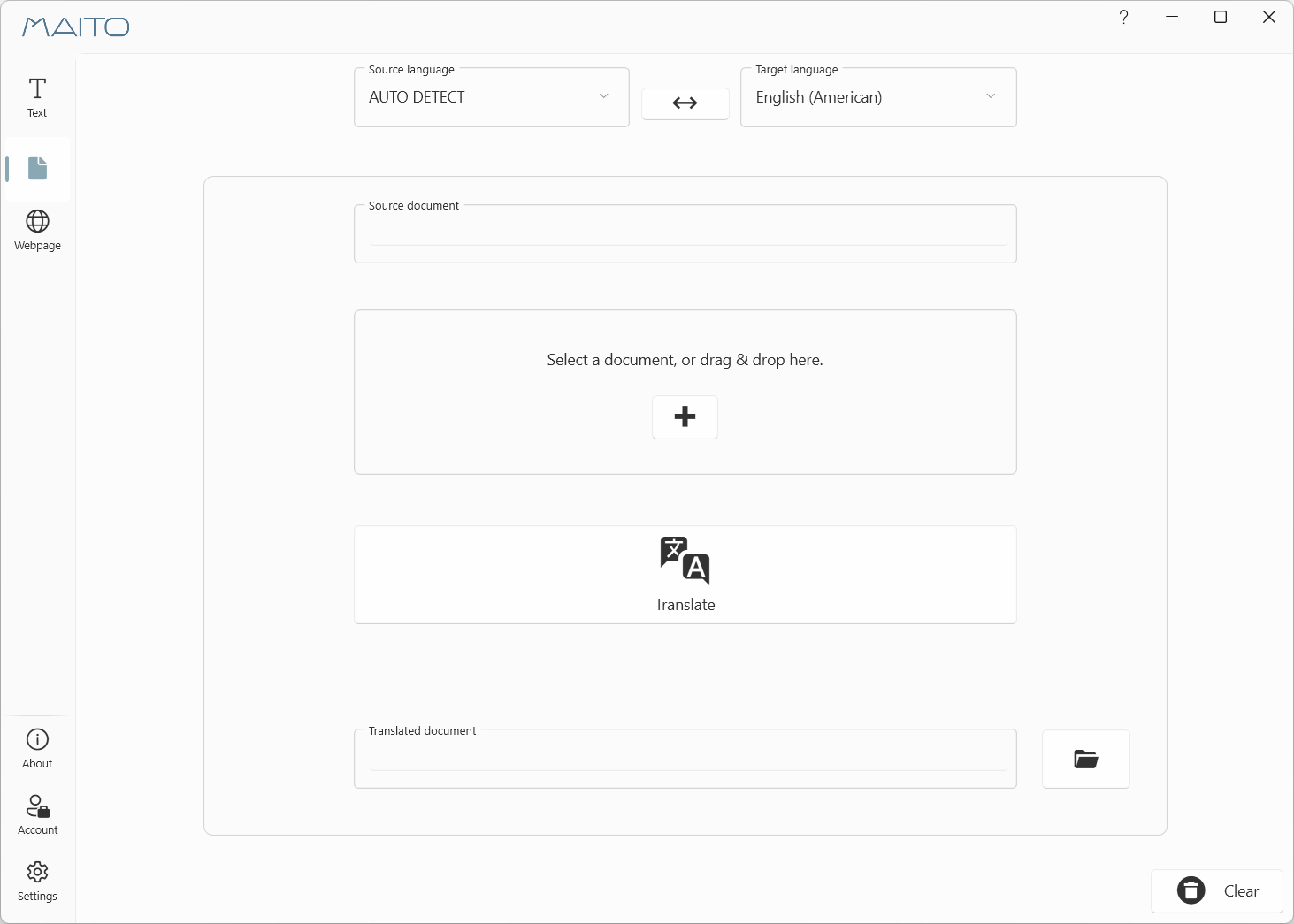
1. Open the Documents Tab
- Launch MAITO
- Click the Documents tab
- Check the engine badge in the top-left corner - it shows which engine will do the work
2. Select Languages
- Choose the source language (or use Auto Detect)
- Choose the target language
- Languages are remembered for next time
3. Add Your Document
Option A: Drag and Drop - drag the file from Windows Explorer onto the upload area.
Option B: File Browser - click Browse, pick your file, and click Open.
The file picker only offers the formats your active engine supports, so you cannot accidentally select a PowerPoint file while Local AI is active.
4. Check the Estimate
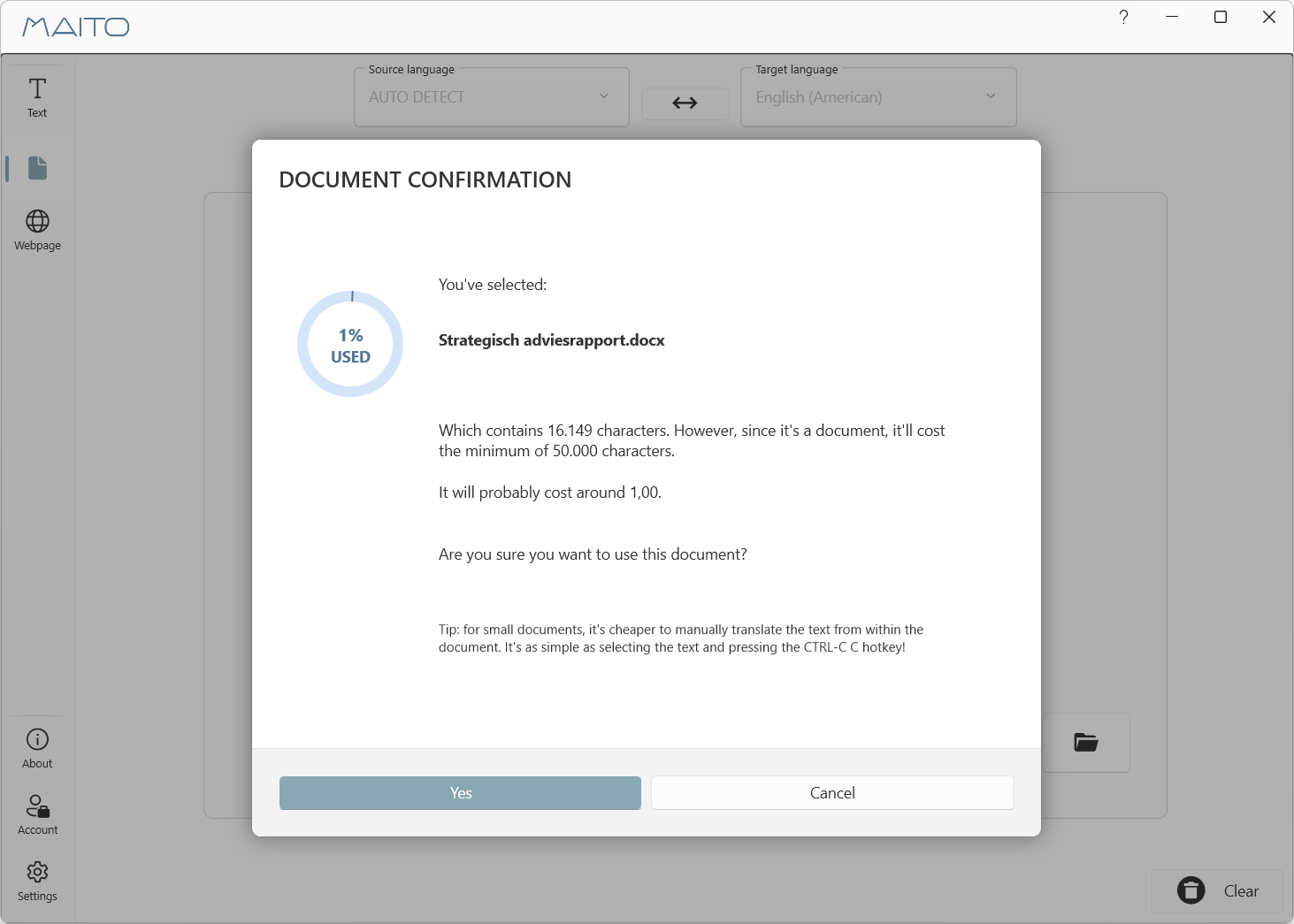
Once the document is loaded, MAITO shows its size, the character count, and an estimate:
- Local AI shows an estimated time. Your document is free to translate, but it costs you wall-clock time.
- DeepL shows an estimated cost in characters, and warns you when translating the content through the Text page would be cheaper. DeepL bills a minimum of 50,000 characters per document.
5. Start Translation
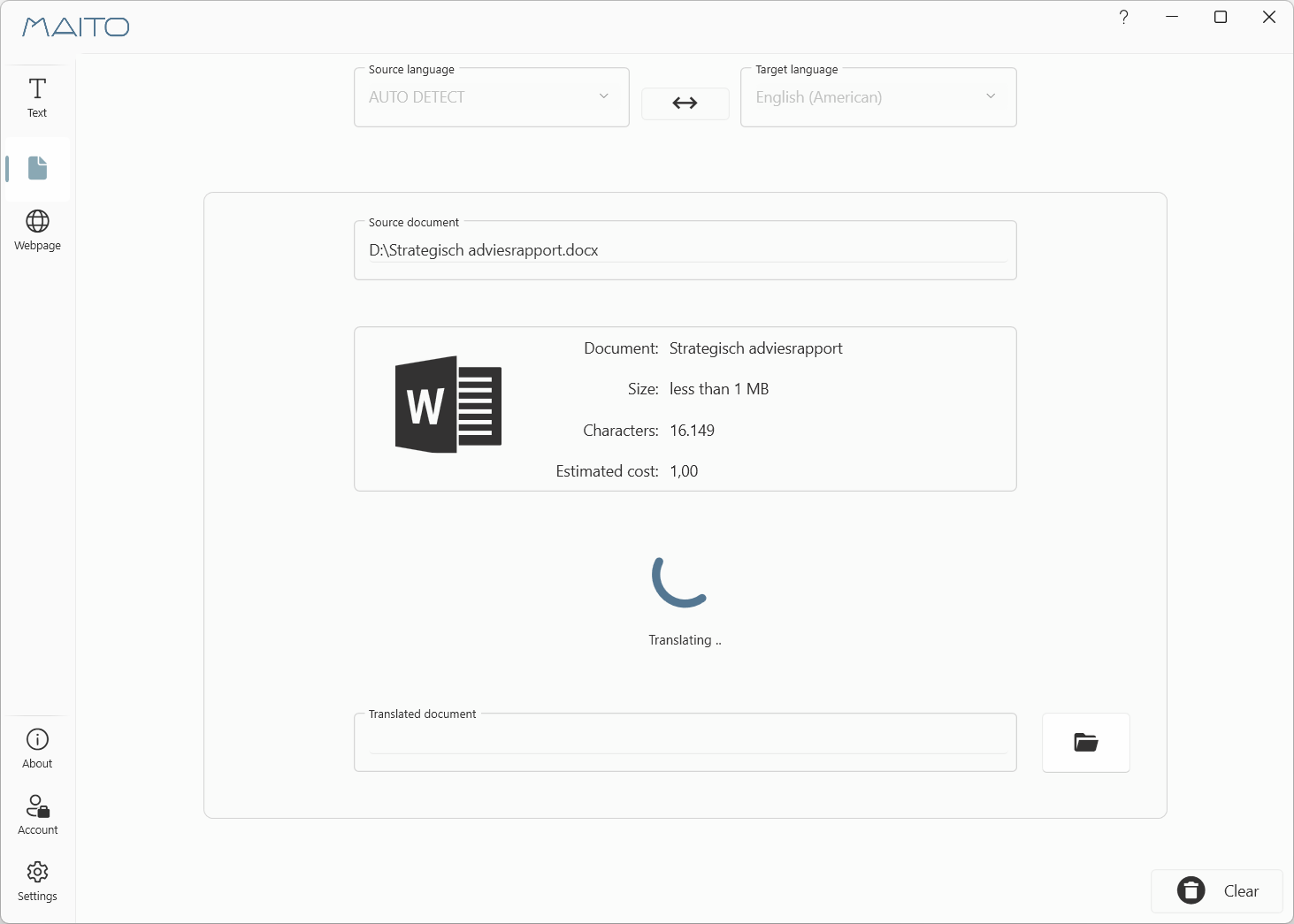
Click Translate. If a file with the target name already exists, MAITO asks before overwriting it.
With Local AI, a progress panel shows which segment is being translated, the current speed, the time remaining, and the elapsed time. You can press Cancel at any point.
You do not have to sit and watch it. Close the MAITO window and it keeps running in the system tray; a Windows notification tells you when the document is done.
6. Open the Result
MAITO saves the translated document next to the original, with the target language code appended:
contract.docx  ->  contract_nl.docx
report.pdf     ->  report_de.pdf
notes.txt      ->  notes_fr.txt
When the translation finishes, the page shows the full path with a button to open the containing folder.
Legacy .doc files
A .doc file is always saved as .docx. The modern format is what MAITO writes internally, and giving it the old extension would make Word complain.
Local AI: What to Expect
One Translation at a Time
The local model can only work on one thing at a time. While a document is translating:
- The Text and Webpage pages are covered by a “translation in progress” overlay
- The global hotkey is suppressed and shows a short message instead
- Starting a second document is refused with “A translation is already in progress”
This is the trade-off for running an AI model on your own machine rather than in a data centre. Start long documents when you do not need MAITO for anything else.
How Long Does It Take?
Roughly, per device class:
| Your device | Speed | 10,000-character document (~4 pages) |
|---|---|---|
| Excellent | ~100 characters/sec | ~2 minutes |
| Good | ~70 characters/sec | ~2.5 minutes |
| Adequate | ~50 characters/sec | ~3.5 minutes |
| Minimal | ~30 characters/sec | ~5.5 minutes |
| Inadequate | ~25 characters/sec | ~7 minutes |
The first estimate is based on your device rating. After you have translated a few documents, MAITO uses your own measured speed instead, so estimates get more accurate over time. A large PDF on a modest laptop can easily take half an hour or more.
Test with a small file first
Before committing to a 200-page report, translate a two-page extract. You will see both the speed and the quality you can expect, in a couple of minutes instead of an hour.
Word Documents
The Word pipeline is the strongest of the three. It preserves:
- Headings, paragraph styles, and bullet or numbered lists
- Bold, italic and other character formatting inside a paragraph
- Tables, headers and footers
- Images and their positions
- Right-to-left languages such as Arabic and Hebrew
By default it also translates comments and footnotes. Tracked changes are accepted before translation begins, so the translated document comes out clean.
Not translated: text inside grouped drawing shapes (diagrams built from several shapes), and the document properties (Title, Subject, Keywords).
PDF Translation Is Best-Effort
PDFs were designed to be created, not changed. To translate one, MAITO converts it to a Word document, translates that, and renders it back to PDF.
The first time you translate a PDF, MAITO shows a notice explaining this. You can tick Don’t show again once you have read it.
What this means in practice:
- Content may shift, and occasionally something moves or disappears
- Complex layouts (tables, sidebars, multi-column text) are the most at risk
- Annotations and form fields are usually lost
Have a Word version? Use it
If the same document exists as a .docx, translate that instead. The result will be noticeably better, and it skips the conversion step entirely.
Save the result as Word instead of PDF. When you select a PDF with Local AI active, a checkbox appears: “Save translated output as Word document (.docx) instead of PDF”. Ticking it gives you an editable Word file and skips the final render back to PDF - useful when you intend to adjust the layout yourself anyway.
PDFs MAITO will refuse:
| Situation | What to do |
|---|---|
| Scanned / image-only PDF | Run an OCR pass first (for example Acrobat’s Scan & OCR), then translate |
| Password-protected or encrypted | Remove the password in your PDF viewer and save an unprotected copy |
| Damaged or unreadable file | Re-save a copy from your PDF viewer and translate that |
PDF translation is the one part that is not fully offline
The PDF-to-Word conversion is done by a third-party component from GroupDocs, whose licence requires it to contact their activation servers when it runs. Only an activation signal is sent: no part of your document, your translation, or your identity. It happens only when you actually translate a PDF. Word, text and webpage translation never trigger it, and the rest of MAITO stays offline.
If you would rather avoid it entirely, cancel at the notice and translate a Word version of the document instead. See Privacy and Security for the full picture.
Translation Quality
Local AI translates a document paragraph by paragraph. That works well for most content, but there are limits worth knowing:
- Quality is good, not DeepL-grade - see Translation Quality
- A heading and the paragraph under it are translated separately, so in heavily inflected languages they can occasionally disagree
- There is no formality control and no glossary support on the local engine
- Repeated paragraphs (boilerplate footers, repeated table headers) are translated once and reused, which speeds things up
Always read the result before sending it anywhere that matters.
DeepL: What to Expect
Formatting Preserved
DeepL preserves fonts, styles, images, tables, headers, footers, and page layout. The translated document looks just like the original.
Formality Control
DeepL can adjust the tone of a whole document:
- Before clicking Translate, find the Formality dropdown
- Choose Default, Formal, or Informal
- Then start the translation
Formality is a DeepL-only feature. The local engine translates in a neutral tone.
When to Use Formality
- Formal: Contracts, legal documents, business reports, official letters
- Informal: Personal letters, blog posts, creative content
- Default: Technical docs, general content (recommended)
Character Counting
Document translations count toward your DeepL character quota:
- MAITO shows the character count before translation
- DeepL bills a minimum of 50,000 characters per document, so short files are much cheaper through the Text page
- Translation only proceeds if you have sufficient quota
Rough guide:
- 5-page Word document ≈ 2,500-5,000 characters
- 20-page PDF ≈ 10,000-20,000 characters
- 10-slide presentation ≈ 500-2,000 characters
Speed
Document translation over DeepL takes seconds to a few minutes, largely independent of your hardware:
- 5-page document: 30-60 seconds
- 20-page document: 2-5 minutes
- 50-page document: 5-10 minutes
File Size Limits
MAITO refuses any document larger than 20 MB before translation starts. Documents over 5 MB get a heads-up that processing will take a while.
DeepL applies its own, stricter limits on top of that:
| File Type | DeepL Maximum |
|---|---|
| DOCX | 10 MB |
| 10 MB | |
| PPTX | 10 MB |
| HTML | 5 MB |
| TXT | 1 MB |
DeepL sets and enforces these limits itself; check DeepL’s API documentation if you hit one unexpectedly.
Troubleshooting
”The selected document is too large”
- The file is over 20 MB
- Compress it (high-resolution images are usually the culprit), or split it into parts
”The selected file type is not supported”
- Local AI accepts
.txt,.doc,.docxand.pdf; DeepL accepts.docx,.pptx,.pdf,.txtand.html - Switch engines, or convert the file to a supported format
- For a PowerPoint or HTML file with Local AI active, switch to DeepL
”A translation is already in progress”
- Local AI translates one document at a time
- Wait for the current document, or cancel it from the progress panel
”Sorry, something went wrong while opening the selected document”
- The file is probably open in Word, Acrobat, or another application
- Close it and try again
The PDF was refused
Scanned, encrypted and damaged PDFs are rejected before translation starts, with the reason shown. See the refusal table above for the fix.
Translation Failed (DeepL)
Possible causes: insufficient quota, lost internet connection, DeepL temporarily unavailable, or a document with no translatable text.
- Check your DeepL quota and API key
- Verify your internet connection
- Try again in a few minutes
Formatting Issues in the Output
Minor issues (slightly misaligned tables, varying font sizes, extra or missing line breaks) are normal, especially in PDFs. Clean them up in Word, or translate a Word source instead of a PDF.
Check Before Final Use
Always review a translated document before final use. Machine translation is a very good first draft, not a finished deliverable.
Best Practices
Before Translation
- Review the source document for errors
- Prefer a Word source over a PDF whenever you have one
- Try a short extract first with Local AI to gauge speed and quality
- Verify the correct languages are selected
After Translation
- Review the translated document for accuracy
- Check formatting is acceptable
- Proofread critical sections
- Keep the original alongside the translation
For Professional Use
- Use DeepL for anything going to a client or publisher
- Human review for legal or medical content
- Test with a sample document first
The Text Page Alternative
For a quick look at what a document says, you can drag and drop it onto the Text page instead. MAITO extracts the text and translates it as regular text.
Pros: fastest option, no minimum character billing on DeepL, and you can edit the text before translating.
Cons: you lose the formatting, layout and images entirely.
What’s Next?
- DeepL vs Local AI - full engine comparison
- Switch Engines - change engines in Settings
- Privacy and Security - what leaves your device, and when
- Translate Websites - extract and translate web content
- Understanding Costs - DeepL pricing
Need Help?
For document translation issues:
- Check the Troubleshooting Guide
- Review the DeepL vs Local comparison
- Contact support: contact@pangaia.software